Every Windows PC is different, but once you
get into your system's boot menu you should be able to find what you're
looking for. To boot from a CD or USB drive:
Restart your computer and wait for that first screen to pop up.
Often, it'll say something like "Press F12 to Choose Boot Device"
somewhere on the screen. Press that key now.
Give it a moment to
continue booting, and you should see a menu pop up with a list of
choices on it. Highlight your CD or USB drive and press Enter.
Alternatively, you can set your computer to always
check for a bootable CD or USB drive. That way, when you have one
inserted, it'll boot from it automatically, and when you don't, it'll
head into your regular operating system. To set this up, follow these
instructions:
Restart your computer and watch for the first
screen that shows up when you boot. You should see something that says
"Press DEL to enter setup," or something similar. Press the noted key on
your keyboard and wait for setup to start.
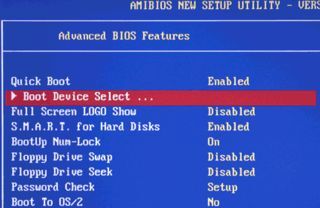
You should see a new screen pop up, called your BIOS. This is where
you set a lot of low-level settings for your computer. Look through the
options (being careful not to change anything) for a setting called
"Boot Device," "Boot Order," or something similar. Select that option.
From the menu that pops up, choose your computer's disc drive
and press Enter. If you're trying to boot from a USB drive, choose
USB-HDD instead and press Enter. Depending on your BIOS, you may need to
use the Page Up and Page Down keys to move your selection to the top of
a list, instead.
Exit out of your BIOS, saving your changes.
Usually, this option is under "Exit" on the main menu, or available via a
keyboard shortcut listed somewhere on your screen.
Your
computer should reboot. Make sure your CD or USB drive is in your
computer. If you're prompted to "Press any key to boot from CD/DVD," do
so. Your computer should boot into the CD or USB drive instead of your
normal operating system.


No comments:
Post a Comment